Welcome to the pghealth application. pghealth is an AI-powered PostgreSQL health check tool that evaluates your database in seconds using a percentage-based scoring system. Each metric is scored individually and then combined into a single overall health score.
By analyzing PostgreSQL and operating system metrics and learning from historical data, pghealth enables trend analysis, anomaly detection, forecasting, and actionable recommendations. Let’s sign in and see how it works.
On the sign-up screen, you can either sign up using Google authentication or create an account with your own email and password. After completing the signup process, you will receive a confirmation email. Once your email is confirmed, you can sign in and start using pghealth.
We are now signed in. The next step is to create an organization. If we want, we can invite our teammates to the organization we created. I’m skipping that step for now. The setup is complete.
The Basic plan is applied by default for every new user. This plan is valid for one month and allows you to generate one report. AI features are not available on the Basic plan.
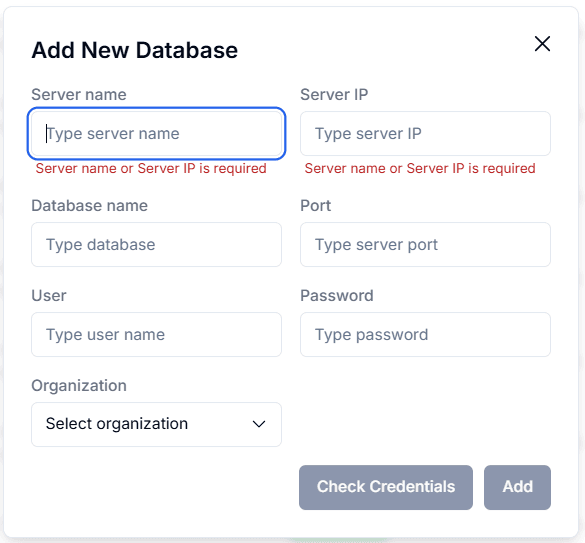
Let’s add our first database for a health check. First, we enter the server name or IP address, along with the database name and port. Next, we provide a superuser account.
This level of access is required so pghealth can collect certain system-level and operating system–level metrics that are only available to privileged users. pghealth never reads, modifies, or queries your application data.
The connection is used strictly to collect metrics and performance statistics from PostgreSQL system views. No changes are made to your database, and full control always remains with you.
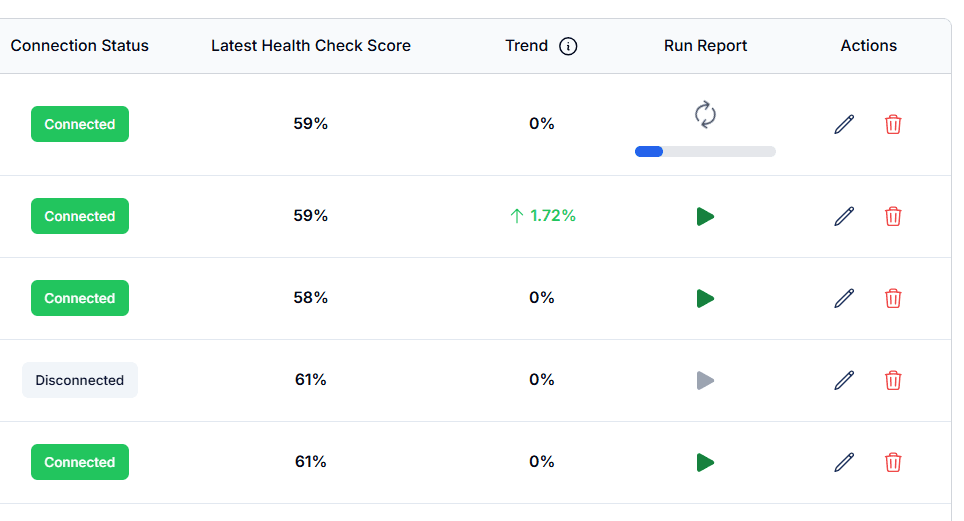
Great. The connection has been validated, and the database has been successfully added to pghealth. We are now ready to run our first report.
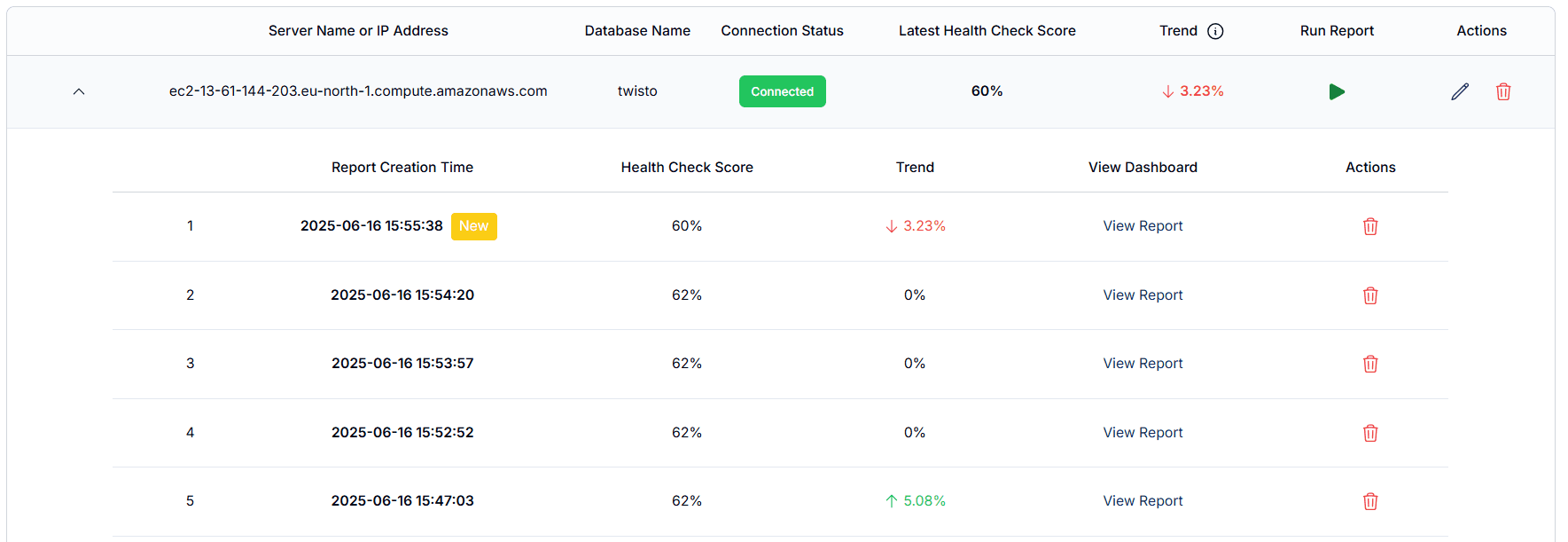
By clicking here, we can view reports that were run previously. Since this database was just added, there are no existing reports yet. For demonstration purposes, I’m switching to a Pro plan user who already has historical reports and access to AI features.
Now we’re ready to run the report. We start by clicking Run Report. At this stage, a precheck is performed to ensure that the required PostgreSQL extensions are installed.
We can track the report generation from the progress bar. Within about 30 seconds, the report is generated and opened in a separate tab.
Great, our report is ready. Creating a report and generating a health check score is that easy.
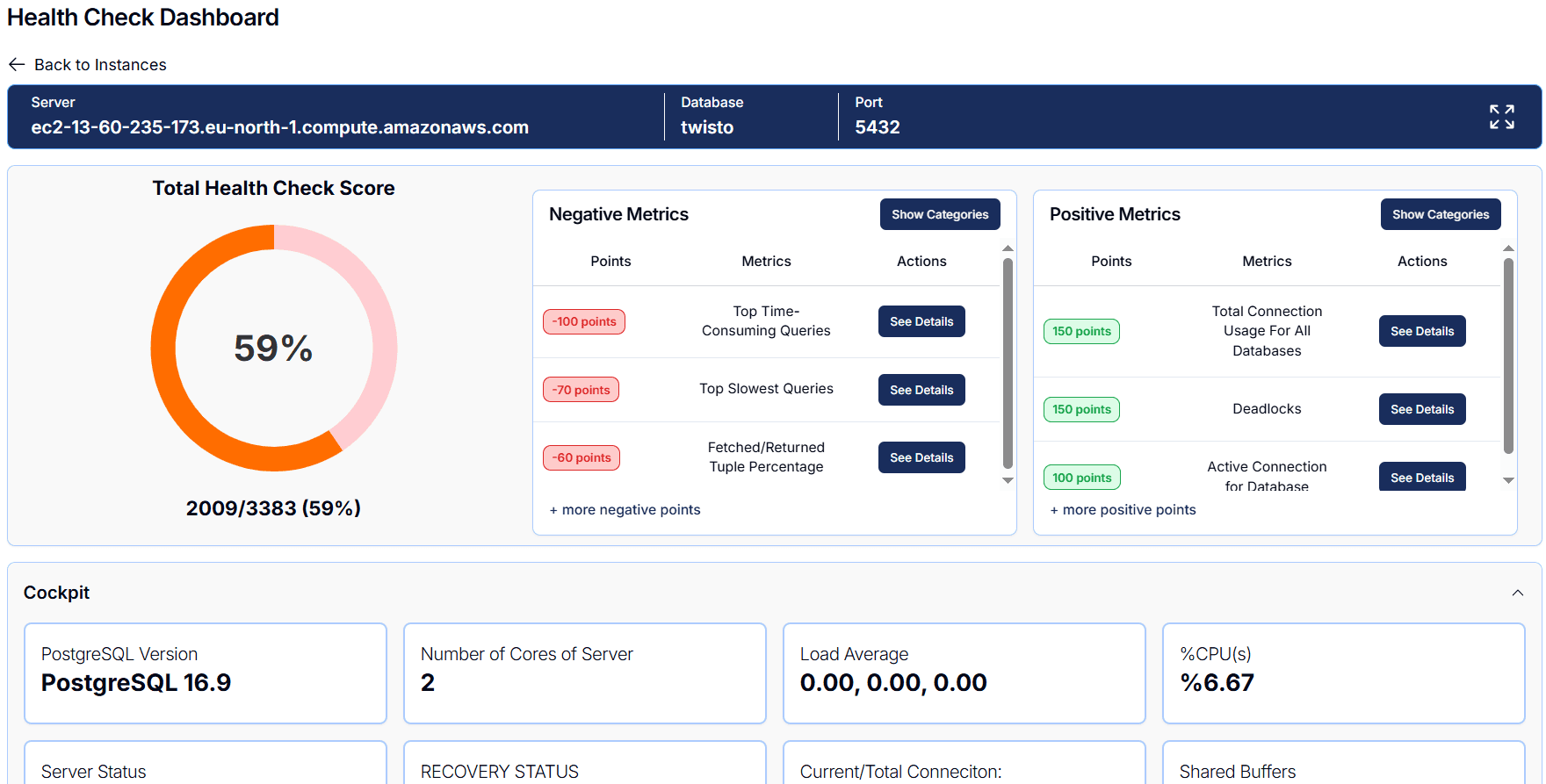
On the left side, you can see the total health check score. In this case, the database scored 1639 points out of 3383, which means the overall health of the database is around 48%.
At this level, the database clearly needs improvement, which is why the chart is displayed in red. As improvements are made and the score increases, the color gradually changes from red to orange, and finally to green.
Each metric is evaluated based on its impact on database performance. From this screen, you can immediately see which metrics have the most positive or negative effect on your database.
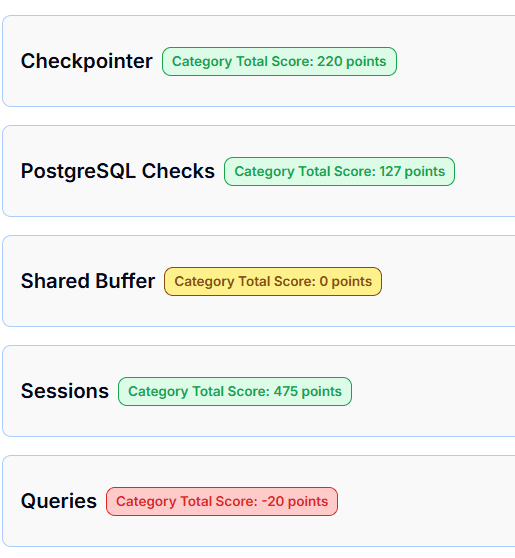
You can also view scoring by category. This makes it easy to identify which areas you should focus on first to improve overall performance.
At the top of the report, you’ll see the Cockpit tab. This section provides a general overview of important database and server information.
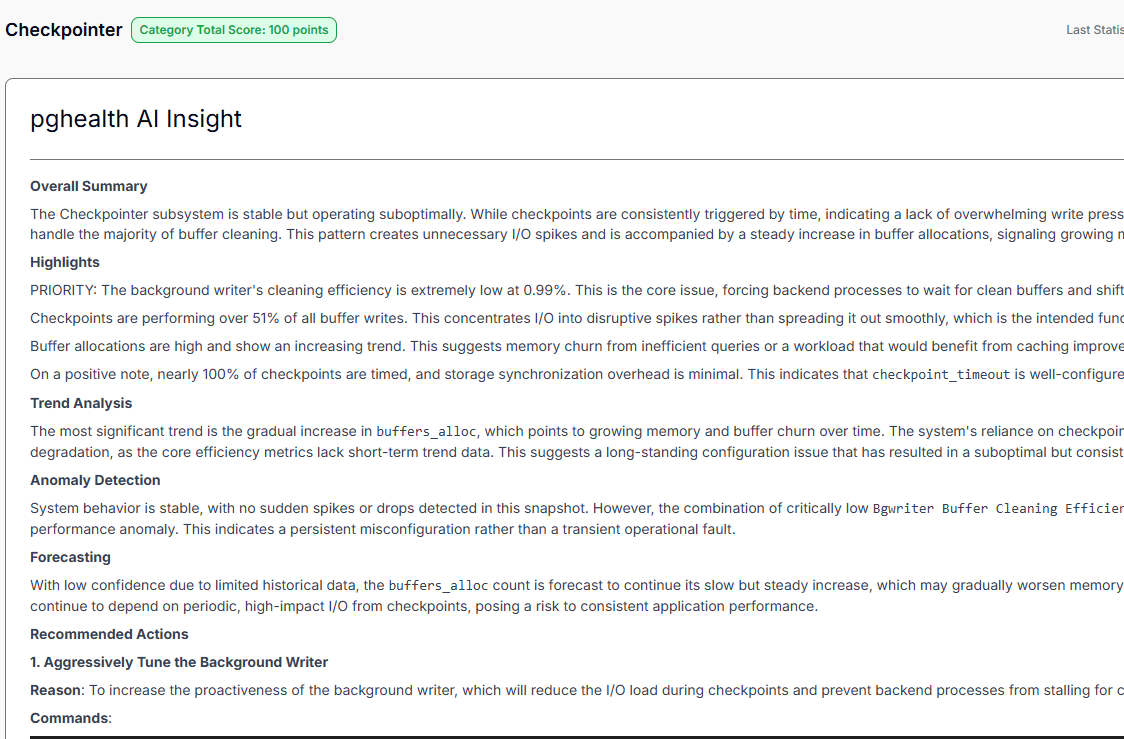
We are currently viewing the Categories section. Each category has its own score. Let’s take a closer look at the Checkpointer category.
Here, seven individual metrics are evaluated. For example, the Bgwriter Buffer Cleaning Efficiency metric has lost 50 points and is marked with a warning indicating that immediate action is required.
By reviewing the metric description, we can understand what the metric represents. In the Actions Needed section, pghealth clearly explains what needs to be done to fix the issue.
pghealth AI also provides trend analysis, anomaly detection, and forecasting. You can see recommended actions, including scripts to run and explanations of why they are needed, along with monitoring and alerting guidance.
Let’s move on to the Queries category. This section includes key metrics such as Top Slowest Queries and Top Time-Consuming Queries.
pghealth AI can analyze this category in detail. Here, you’ll find an overall summary, highlights, and performance insights, along with recommendations to improve query performance.
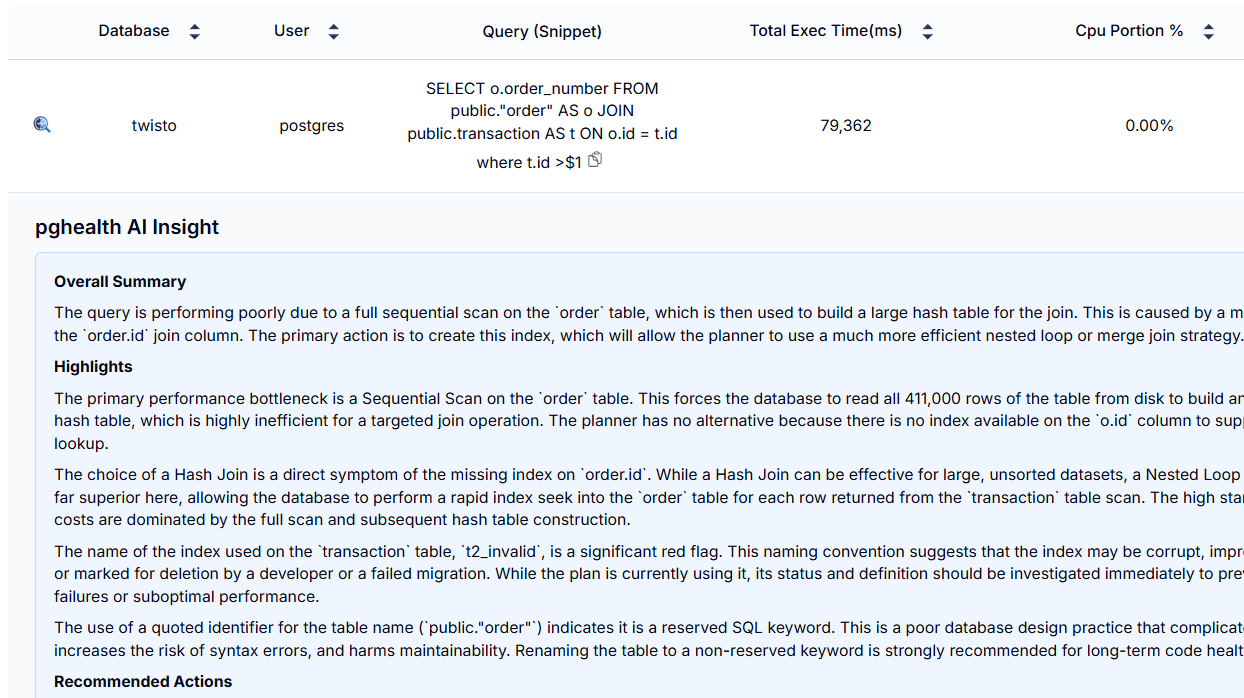
If you want to optimize a specific query, simply click the magnifying glass icon next to it. pghealth retrieves the query execution plan and analyzes it in depth.
You’ll receive insights on how to optimize the query, including logical improvements, rewrite strategies, index recommendations, and performance tuning techniques based on real-world PostgreSQL execution patterns.
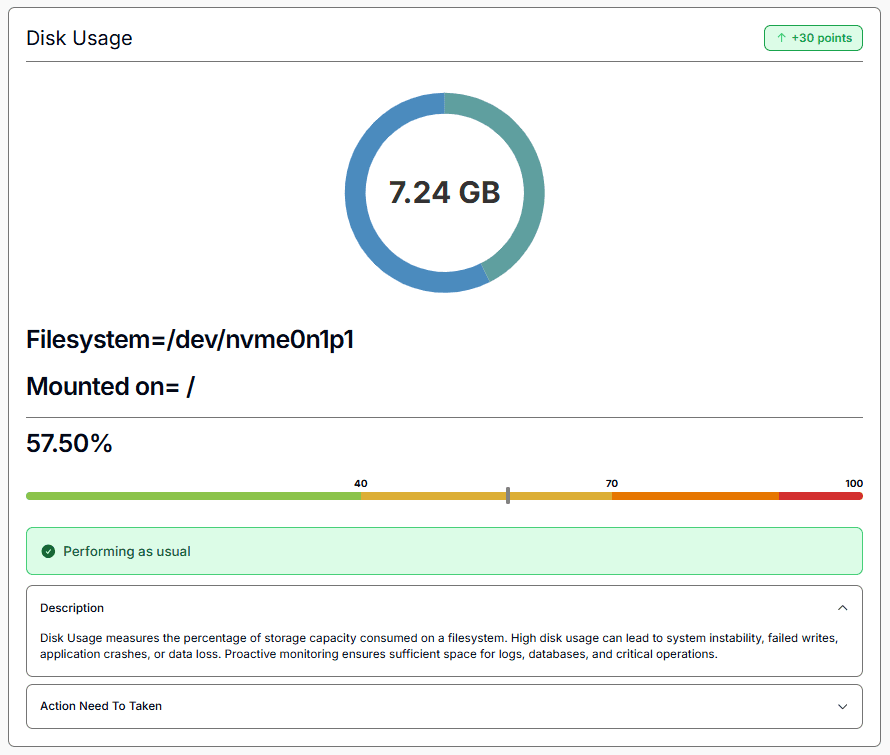
Next, let’s look at the PostgreSQL Checks category. This section includes important metrics related to memory, disk usage, swap, transaction wraparound, and more.
By using pghealth AI, you can gain insights into how your system is likely to behave in the future. For example, pghealth may indicate that disk usage is increasing by 0.1% per day and will reach 98% next month.
It also provides clear action plans on what you can do to prevent issues before they impact production.
In summary, pghealth allows you to quickly understand the health of your database and build effective action plans by monitoring over 200 metrics across logs, indexes, tables, queries, and system resources.
Using pghealth is that simple. Try it for free today.